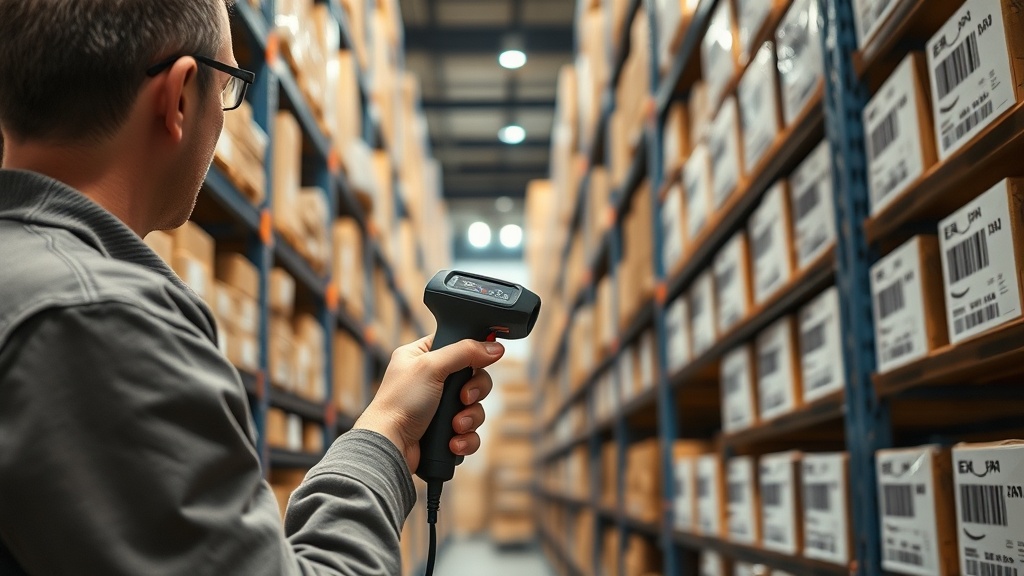
Most Amazon sellers know that a barcode identifies a product. What almost nobody knows: that same barcode maps to professionally photographed studio images that you can retrieve via API in under a second.
This guide explains how it works, walks through the step-by-step process for using the SKU Monster API, and shows you how to bulk-process an entire barcode CSV for a catalog launch.
What You'll Learn
- What barcodes actually contain and why they map to product images
- Why most sellers don't know this technology exists
- Step-by-step: enter a barcode, get back 5+ studio images + product data
- Use cases: Amazon FBA, Shopify bulk import, WooCommerce catalog sync, eBay
- How to bulk-process a CSV of 1,000+ barcodes
What Barcodes Actually Contain
A barcode (EAN-13, UPC-A, or GTIN) is a globally unique product identifier. The EAN-13 standard is managed by GS1, the global organization that assigns manufacturer prefixes. Every product sold through retail — from a box of cereal to a USB cable — has a unique barcode tied to that exact product, variant, and manufacturer.
When a brand registers with GS1 and assigns barcodes to their product line, that data flows into retail systems: distributor catalogs, retailer databases, e-commerce platforms. Every major retailer who has ever stocked that product had to photograph it.
The insight: Those images already exist. They were created at product launch, they're stored in product databases, and they can be retrieved by barcode lookup.
This is not scraping. It's accessing a catalog of pre-existing professional product photography indexed by the same barcode system the global retail industry runs on.
Why Most Sellers Don't Know This Exists
The standard path for Amazon FBA sellers runs like this:
- Source product from supplier
- Get a barcode from GS1 (or buy a UPC)
- Hire a photographer, ship samples, wait 2–3 weeks
- Upload images to Seller Central
Step 3 is where most sellers assume there's no alternative. Barcode lookup tools have existed for product name and category lookup for years (UPCitemdb, Open Food Facts, Barcode Lookup). But image retrieval via barcode is a newer capability — and it's not well-documented outside of developer circles.
The SKU Monster API covers 2.4 million products with actual studio photography. For most commoditized product categories — electronics accessories, household goods, beauty products, tools, grocery, health — your barcode is already in the database.
Step-by-Step: Barcode to Images in Under 60 Seconds
Step 1: Get your product's barcode
Your barcode is on the product packaging. It's the EAN-13 (13-digit number under the vertical bars) or UPC-A (12-digit). Example: 5901234123457.
If you're working from a supplier list, the barcode is usually in the column labeled EAN, UPC, GTIN, or Barcode.
Step 2: Look up the product
Use the SKU Monster API:
curl "https://sku.monster/api/v1/lookup?identifier=5901234123457&fields=full" \
  -H "x-api-key: YOUR_API_KEY"
Or use the web interface at sku.monster — just paste the barcode into the search box.
Step 3: Get images back instantly
The API returns a response with:
name— product namebrand— manufacturer/brandcategory— product categorydescription— product descriptionimages[]— array of image URLs (white-background studio shots)attributes{}— dimensions, weight, color, sizedata_quality_score— confidence score (0–100)
Example response (truncated):
{
  "identifier": "5901234123457",
  "name": "Premium USB-C Cable 2m",
  "brand": "Anker",
  "category": "Electronics / Cables",
  "images": [
    "https://cdn.sku.monster/img/5901234123457/hero.jpg",
    "https://cdn.sku.monster/img/5901234123457/angle1.jpg",
    "https://cdn.sku.monster/img/5901234123457/detail.jpg"
  ],
  "data_quality_score": 94
}
Step 4: Download and use images
The image URLs point to white-background studio images that meet Amazon's main image requirements: pure white background (RGB 255,255,255), product fills 85%+ of frame, minimum 1,600px on the longest side.
Download them, upload to Seller Central, done.
Use Cases Beyond Amazon FBA
Shopify Bulk Import
Running a Shopify store? If your supplier gives you a product list with EANs, you can enrich the entire catalog automatically — pulling product names, descriptions, categories, and images into your Shopify product import CSV.
WooCommerce Catalog Sync
WooCommerce stores selling 100+ products can use the API to bulk-populate product images and descriptions. One API call per barcode, then map the response fields to your WooCommerce import format.
eBay Listings
eBay's catalog matching system works better when you have proper product images. The same barcode lookup that works for Amazon works for eBay — same barcode, same images, same data.
Inventory Management Systems
If your warehouse or 3PL system shows SKU numbers but no images, you can use barcode lookup to add product thumbnails to every line item — making picking, packing, and auditing dramatically easier.
How to Bulk-Process a Barcode CSV
For large catalogs, you don't want to look up barcodes one at a time. Here's a Python workflow to process an entire CSV:
import csv
import requests
import json

API_KEY = "your_api_key_here"
BASE_URL = "https://sku.monster/api/v1/lookup"

results = []

with open("barcodes.csv", "r") as f:
    reader = csv.DictReader(f)
    for row in reader:
        barcode = row["barcode"]
        response = requests.get(
            BASE_URL,
            params={"identifier": barcode, "fields": "full"},
            headers={"x-api-key": API_KEY}
        )
        if response.status_code == 200:
            data = response.json()
            results.append({
                "barcode": barcode,
                "name": data.get("name", ""),
                "brand": data.get("brand", ""),
                "image_1": data.get("images", [None])[0],
                "image_2": data.get("images", [None, None])[1] if len(data.get("images", [])) > 1 else "",
                "description": data.get("description", "")
            })

with open("enriched_products.csv", "w", newline="") as f:
    writer = csv.DictWriter(f, fieldnames=["barcode","name","brand","image_1","image_2","description"])
    writer.writeheader()
    writer.writerows(results)

print(f"Processed {len(results)} products")
What you get: An enriched_products.csv with product names, brands, image URLs, and descriptions for every barcode in your input file. Ready to map into Amazon flat files, Shopify CSV import, or WooCommerce XML.
What If a Product Isn't in the Database?
About 15–20% of lookups won't return results — typically very new products, private-label items, or obscure categories with limited retail history.
For those products, your options are:
- Submit the product for data enrichment (SKU Monster can usually source data within 24–48 hours)
- Fall back to traditional photography for just those SKUs
- Generate a synthetic studio image using the image generation endpoint
The practical workflow: run your full barcode list through the API, flag products with data_quality_score < 50 or empty images[], and handle those separately.
Summary
Barcodes (EAN/UPC/GTIN) are global product identifiers that map to professionally photographed product imagery. For the 2.4 million products already indexed by the SKU Monster API, you can retrieve studio-quality images in under a second — for $2/SKU versus the $250–$1,500/SKU cost of traditional photography.
The workflow is simple: barcode in, images out. For large catalogs, the Python bulk-processing script handles hundreds or thousands of lookups automatically.
Ready to Try It?
Start enriching free on SKU Monster — paste your first UPC and get images in seconds. No credit card required. Access the API docs to start building.